



Every school finance team knows how it goes. A parent pays an amount that doesn’t match any single installment, part of an online payment is left over, or a refund needs to cover only part of a receipt. Until now, these cases often meant choosing the right special transaction type before you started. With this update, the form takes care of that for you.
One transaction type for every case
Before, recording money that wasn’t linked to an installment meant picking an “Unconnected” option from the New Transaction menu, and the Transaction Series decided how it was treated.
Those entries are now gone. You always use the normal transaction, and Classter decides from the content: if any part of the transaction isn’t linked to an arrangement installment, it’s unconnected. If a student has no outstanding installments, the form still opens, tells you so, and lets you enter an unconnected amount.
Type the amount and you’re done
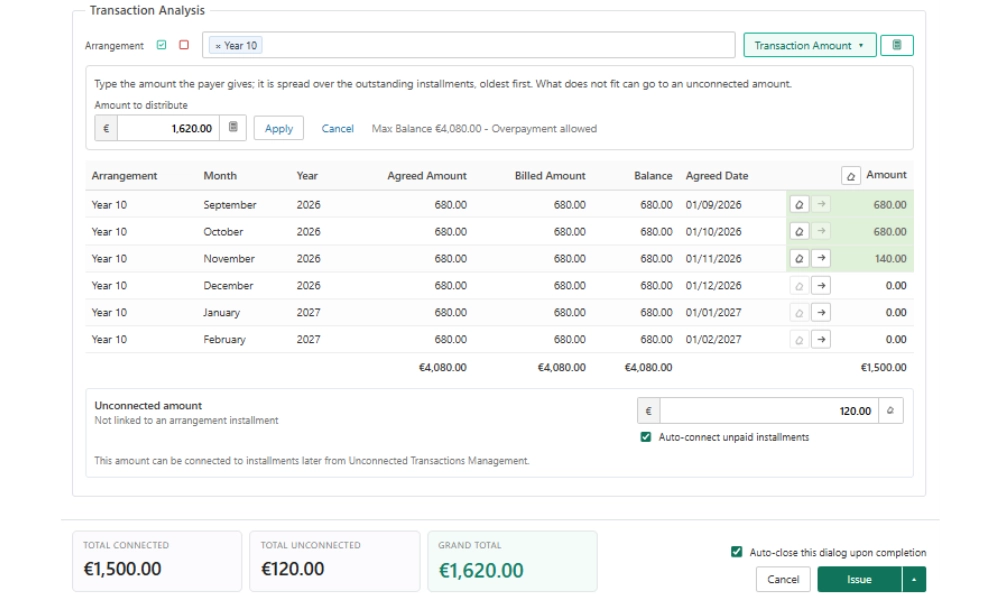
The new Transaction Amount panel does the maths. Type what the payer is handing over and Classter spreads it across the outstanding installments, oldest first. Need to settle everything? One click pays off every installment, and another fills in the maximum allowed. “Max Balance” shows the limit up front and whether your settings allow overpayment.
Anything that doesn’t fit into an installment can go into an unconnected amount, where your settings allow it. On a Payment Receipt, tick “Auto-connect unpaid installments” and Classter will link it once new installments are due. For online payments, any part above the installments becomes an unconnected amount automatically, so nothing needs re-entering by hand.
Always know what you’re issuing
Each row now has Clear and Fill buttons, and Clear All resets the whole table. At the bottom of the form you’ll always see Total connected, Total unconnected (only when there is one) and the Grand total, right next to a single Issue button that also offers Issue And Email and Issue And Print. The period you choose inside the form now stays selected too.
Better visibility in the Accounting Tab
The per-voucher view now shows each transaction’s unconnected amount, so you can see at a glance which money is still waiting to be linked to an installment.
Getting started
These changes are available now in the student’s Financial page under New Transaction. If you used the “Unconnected…” transaction types before, just switch to the normal transaction from now on. Your options for unconnected amounts and overpayment are still controlled by your existing settings.