


Every Classter institute is configured a little differently, and that flexibility lives across 13 settings pages in the CONFIGURATION menu. Knowing that a setting exists is easy. Remembering whether it sits in Main Settings, Attendance Settings or Financial Settings, and on which tab, is harder.
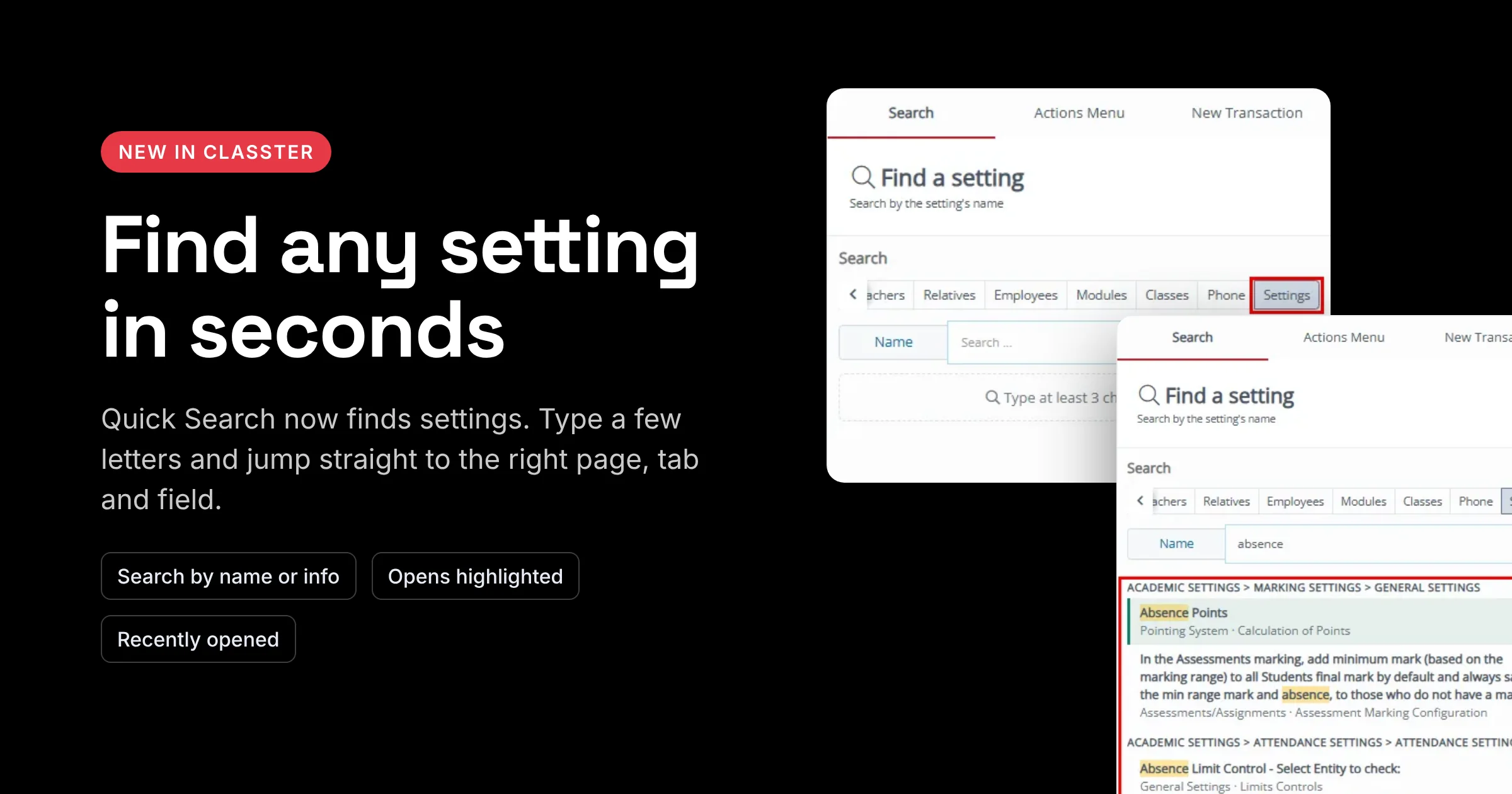
Quick Search now has a Settings option. Type part of a setting’s name, and Classter shows you where it lives and takes you straight to it.
How it works
- Select the magnifier icon in the top bar, next to the help (?) icon.
- Select Settings, the last button in the row of search buttons. The title changes to Find a setting.
- Type at least 3 characters. Results appear and update as you type.
- Select a result, or use the arrow keys and press Enter.
Classter opens the real settings page, expands the CONFIGURATION menu to it, opens the right tab, scrolls to the setting and highlights it for about 5 seconds with the cursor already in its field. Change the value and select Save as usual.
What makes it fast
- Search in your own words. A setting is found by its name in your language, in English, or by its technical name. Capital letters and accents are ignored, so a Greek search without tonos still finds the right setting.
- Results you can scan. Matches are grouped by settings page, using your institute’s own menu terminology. Each one shows the tab and group it sits on, with the words you typed marked.
- Search the explanations too. Switch the scope to Name & Info to also search each setting’s info text and its tab or group name. For example, no setting has “Microsoft” in its name, but Name & Info finds the two General Settings whose info text mentions Microsoft 365. If a name search finds nothing, Classter offers this switch for you.
- Jump to whole tabs. When your search matches a tab name, the matching tabs are listed first, and one click opens that tab.
- Pick up where you left off. Your last 5 settings opened from the search are listed under Recently opened whenever the search box holds fewer than 3 characters.
- Keep your place. Ctrl+click (Cmd+click on a Mac) or Ctrl+Enter opens a setting in a new browser tab and leaves your search as it was.
Safe by design
The Settings search only shows settings you can already open from your own CONFIGURATION menu. It respects role menus, modules and your subscription. It never displays a setting’s value and never changes one: every change is still made and saved on the settings page itself.
Learn more
For the full walkthrough, read Find a Setting with Quick Search in the Classter Knowledge Base.